

title: "How to Scan Receipts from the Job Site in 10 Seconds" slug: "scan-receipts-job-site-10-seconds" excerpt: "Paper receipts from the lumber yard and supply house disappear. When they do, deductions disappear with them. Scanning receipts from the job site takes 10 seconds with the right app. Here is how it works." meta_description: "Learn how to scan receipts from the job site in seconds with AI. Bit & Grain's receipt scanning auto-categorizes expenses so nothing gets lost." og_title: "How to Scan Receipts from the Job Site in 10 Seconds" word_count: 2043 estimated_read_time: 9
How to Scan Receipts from the Job Site in 10 Seconds
You stop at the lumber yard on the way to the job site. You grab $340 worth of 2x6s, a box of screws, and some flashing. The cashier hands you a receipt. You fold it, put it in your shirt pocket, and drive to the job.
Three weeks later, you are doing your bookkeeping and that receipt is gone. It went through the wash, got left in the truck, blew out the window. Now it is $340 that you cannot document as a job cost, and it is gone from your records. If the IRS ever asks about that expense, you are relying on bank statements and vendor records to reconstruct something you should have captured on the spot.
This is the most common and most avoidable way that solo contractors lose money. Not on bad bids. Not on slow clients. On paperwork they did not capture when they had it in their hands.
Scanning a receipt from the job site takes about 10 seconds with the right tool. Here is exactly how to do it, and why the habit changes how you run your business.
Why Receipts Matter More Than You Think
The IRS requires documentation for business expense deductions. A bank statement showing a charge at a lumber yard establishes that you spent money there. It does not tell the IRS what you bought, which job it was for, or whether it was a legitimate business expense versus a personal purchase.
A receipt, by contrast, shows the vendor, date, itemized line items, and amount. Combined with a job note tying the expense to a specific project, it is clean documentation for any deduction.
The average gap between what a contractor claims and what they could legitimately claim runs $10,000 to $30,000 per year, according to 1800Accountant. A significant portion of that gap is undocumented expenses. Not expenses that do not exist. Expenses that were real but not captured correctly.
The labor hours add up on the other side too. Ontraq, a receipt management platform built for contractors, estimates that contractors who manually track receipts lose 15 or more hours every week to admin tasks including manual entry, reconciliation, and looking for missing records. That is hours you are not billing.
The Old Way vs. the 10-Second Way
The old way: pocket the receipt, put it in a folder (maybe), enter it into QuickBooks (eventually), categorize it (probably incorrectly), attach the scanned image (almost never). Total time: 8 to 12 minutes per receipt across all those steps, assuming you do not lose the receipt first.
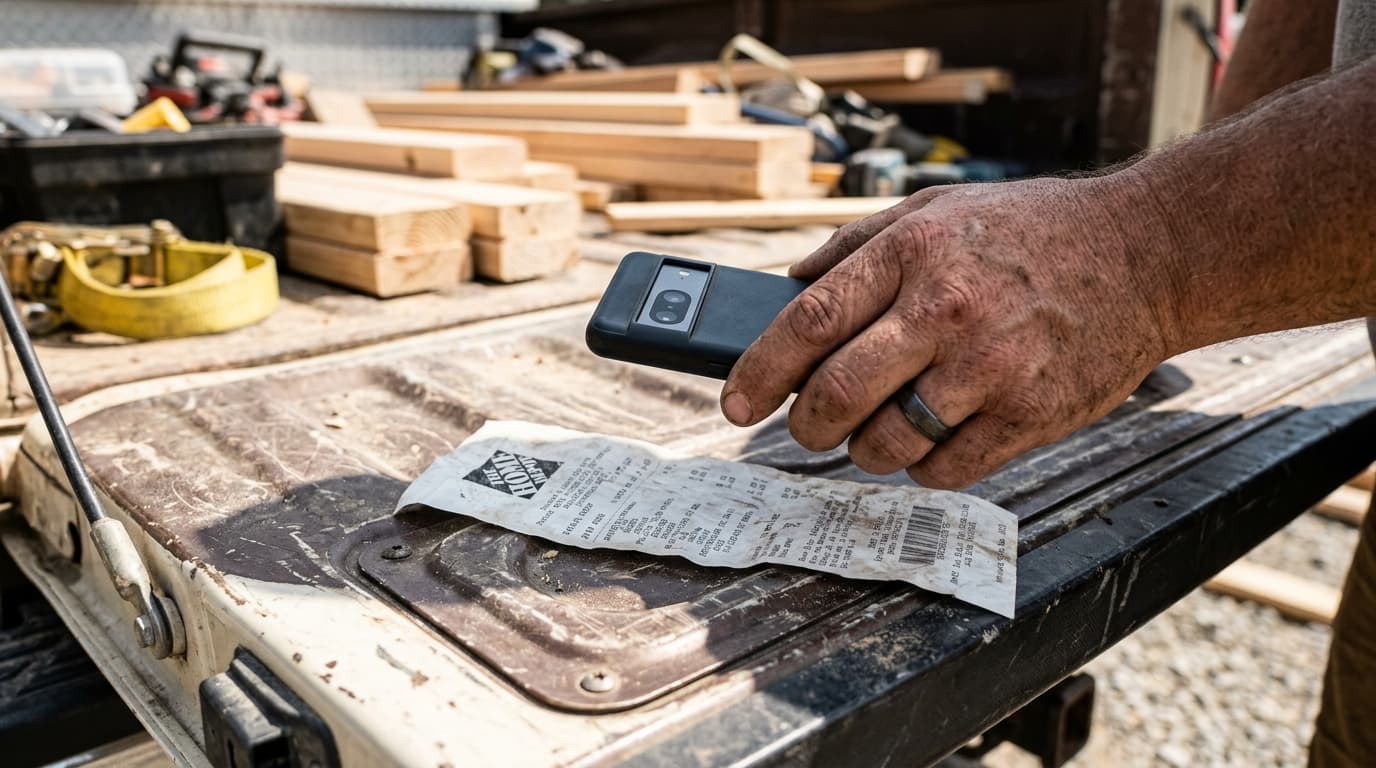
The 10-second way: open the app, point the camera at the receipt, tap. The AI reads the vendor, date, amount, and line items. It auto-categorizes based on vendor history. It attaches to the relevant job if you tag it. You put the phone back in your pocket and get back to work.
Grain AI's receipt scanning works this way. The capture step is one motion. The processing is automatic. You do not re-enter data anywhere.
Step-by-Step: Scanning a Receipt from the Job Site
Here is the complete workflow on Bit & Grain:
Step 1: Pull out your phone
You are standing at the register or in your truck right after a supply run. Phone out.
Step 2: Open the receipt scanning feature
One tap from the main screen. It takes you directly to the camera.
Step 3: Take the photo
Point at the receipt. The AI captures the image. You do not need perfect lighting or a perfectly flat surface. The OCR (the text-reading tech) handles some distortion and angle.
Step 4: Confirm the auto-fill
The app reads: vendor name, date, total, and line items. For a lumber yard you visit regularly, it already knows the category. For a new vendor, it suggests a category and you confirm with one tap.
Step 5: Tag the job (optional but useful)
If this expense belongs to a specific job, tag it. That connects the receipt to the job's cost tracking. Now you have real-time job costing without any manual entry.
That is it. You are done. The receipt is in the system, categorized, attached to the job, and accessible from any device.
What Happens to the Paper Receipt
You can keep it or throw it away. Seriously. Once the digital record is captured and stored, the paper is a backup at best. The IRS accepts digital records for expense documentation. The photo timestamp and the app's metadata provide a reliable audit trail.
This is not advice to throw away everything. For unusually large purchases (equipment, major material orders), keeping the paper for a few months is reasonable. But for the $40 fuel fill-up, the $80 run to the hardware store, the $120 in consumables: capture it digitally and move on.
The Job Costing Benefit
The receipt scanning habit does something beyond just preserving deductions. It feeds live job costing.
When you scan a receipt and tag it to a job, your job cost report updates in real time. You can look at any open job and see what you have spent on materials so far versus what you estimated. If you are at 80% of your materials budget with 40% of the work left, that is information you need before the job closes. Not after.
Most contractors who track job costs do it retroactively: you add everything up when the job is done and see how the margin came out. By then, it is too late to adjust. Real-time job costing built from scanned receipts lets you see problems as they develop, not after the damage is done.
Comparing Receipt Scanning Apps
There are several receipt scanning apps on the market. They vary significantly in how well they handle the contractor use case.
Generic expense apps (Expensify, Ramp, Zoho): These work fine for corporate expense reports. The categorization is designed for office environments, not job sites. Vendor names like "M&W Supply Co" or "Ferguson Enterprises" may not categorize correctly. There is no job tagging connected to an active work order.
QuickBooks Mobile: Decent OCR, connects to your QuickBooks records, but it does not have job-level tagging tied to active jobs. You end up manually connecting expenses to projects.
Construction-specific apps (Ontraq, FieldMaterials): Better at job costing connections, but they are standalone apps that do not include the rest of your field service workflow. You end up switching between apps.
Bit & Grain's receipt scanning: Part of the same platform where you run estimates, invoices, job scheduling, and client communication. The receipt scan connects directly to the job. No app switching. No re-entry.
The advantage of having receipt scanning inside your field service platform is that the data flows. An expense tagged to a job shows up in that job's cost breakdown. That job cost report feeds into your profitability analysis. Everything connects without manual bridging.
What About Jobber?
Jobber includes some expense tracking, but it is not the same as receipt scanning with AI categorization. Jobber's expense features are mostly manual entry with optional photo attachment. You still do the categorization work. At Jobber's price point ($49+ per month for plans where expense tracking is meaningful), you are paying more for less automation on this specific function.
Bit & Grain at $29/month includes Grain AI with actual OCR-based receipt reading, not just photo storage. The difference is whether the AI is doing the work or you are.
Building the Habit
The tool only helps if you use it every time. The contractors who get the most out of receipt scanning are not the ones who do it sometimes. They are the ones who scan before they leave the store parking lot.
The behavioral cue is simple: credit card back in wallet, phone out, scan. That sequence happens in the same 30 seconds either way. The only difference is whether you take the photo.
A few situations where the habit saves you most:
- Supply runs (lumber yards, plumbing supply, electrical supply)
- Fuel receipts (especially when running multiple vehicles)
- Hardware store purchases (fasteners, adhesives, small tools)
- Rental equipment (always get an itemized receipt)
- Subcontractor invoices (scan when you pay, not when you file)
The subcontractor invoice one is worth emphasizing. When you pay a sub, you want a record of that payment tied to the job. A scanned invoice with a payment note does that cleanly.
How Bit & Grain Helps
Bit & Grain's receipt scanning is part of the full Grain AI suite, included at the base $29/month price. There is no separate AI tier.
Here is what the receipt workflow looks like inside Bit & Grain:
- Scan a receipt in about 10 seconds at the job site
- AI reads vendor, date, amount, and categorizes automatically
- Tag to any open job for real-time cost tracking
- Receipts are searchable, exportable, and audit-ready
- Your CPA gets clean records at tax time, not a shoebox
The platform is built for trade contractors: plumbers, electricians, HVAC techs, roofers, general contractors, and 17 other trades. The categories match trade work. The vendor database is tuned for supply houses, not coffee shops and airline fees.
See what Bit & Grain includes at $29/month.
The Scan Receipts Job Site Habit Pays for Itself
If you scan receipts consistently for one month, look at your job costing report at the end of that month. Compare it to what you had before. That is the concrete case for the habit.
The deductions you capture, the job costs you can track in real time, the hours you save on end-of-month entry: these are not hypothetical benefits. They are dollars and time that show up in the first 30 days.
Ten seconds per receipt. Do it every time. The compounding effect on your records, your margins, and your tax position is real.
Bit & Grain is field service management for small trade contractors. Flat $29/month. AI and receipt scanning included.